ToolStripStatusLabel
In a ScriptoForm, the Microsoft .NET ToolStripStatusLabel class is a control that can be embedded into a StatusStrip control and is used to display status information or progress to the user while the ScriptoForm is running. A ToolStripStatusLabel can display text, an icon, or both.
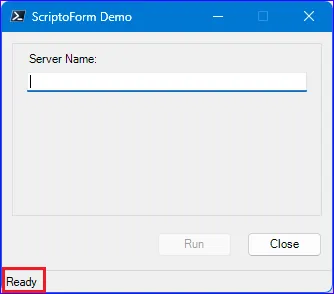
When a new ScriptoForm is built using the New-SADScriptoFormProject function, a default ToolStripStatusLabel control (
$ToolStripStatusLabelMain) is provisioned in the script. A ToolStripStatusLabel must be embedded in a StatusStrip object and in the case of a default ScriptoForm it is embedded in the $StatusStripMain object. However, an additional ToolStripStatusLabel may need to be created for use with each secondary Form added to the ScriptoForm.The steps needed to implement a ToolStripStatusLabel control with a ScriptoForm include:
- Instantiate a ToolStripStatusLabel object in the Controls region.
Suggested name format: $ToolStripStatusLabelName - Add the ToolStripStatusLabel object to StatusStrip control in the Forms region.
- Assign the
Textproperty to the ToolStripStatusLabel object with the$FormMain_Shownevent handler in the Handlers region. An event handler it typically used for this process to allow for possible state changes while the script is loading and connecting to remote resources. For example the text “Connecting to VMware vCenter instance…” may need to displayed while the script is initializing prior to setting it to “Ready”.
Examples
Section titled “Examples”- Instantiate a new
System.Windows.Forms.StatusStripobject:Controls Regions $ToolStripStatusLabelMain = New-Object -TypeName System.Windows.Forms.ToolStripStatusLabel - Add a ToolStripStatusLabel control to the StatusStrip object:
Forms Region | $ShowMainForm $StatusStripMain.SizingGrip = $false$StatusStripMain.Font = New-Object -TypeName System.Drawing.Font("MS Sans Serif",8)[void]$StatusStripMain.Items.Add($ToolStripStatusLabelMain)$FormMain.Controls.Add($StatusStripMain) - Add the text property value to the ToolStripStatusLabel object:
Handlers Region | $FormMain_Shown $FormMain_Shown ={$ToolStripStatusLabelMain.Text = "Ready"$StatusStripMain.Update()$FormMain.Activate()}
The
Text property value of a ToolStripStatusLabel object can be updated when the state of the ScriptoForm changes. For example when the user clicks the “Run” button, the property can be updated to indicate a long running process is executing. When the process has completed, the property can be set back to the default Ready value. The most effecient way to implement these changes is by using the Invoke-FormAction helper function.The steps needed to update the text of a ToolStripStatusLabel control include:
- Set the
Textproperty of the ToolStripStatusLabel object with theStatusTextparameter of the Invoke-FormAction helper function. If not provided, this will default toWorking...please wait. - Optionally, update the
Textproperty of the ToolStripStatusLabel object at different points within theActionparameter code block of the Invoke-FormAction helper function to provide more granualar feedback to the user as actions are being performed. - The
Textproperty of the ToolStripStatusLabel object will automatically be set back to the default value (“Ready”) after the actions have completed by the Invoke-FormAction helper function.
- Set the
Textproperty of the ToolStripStatusLabel object using theStatusTextparameter:Handlers Regions | $ButtonRun_Click $ButtonRun_Click ={Invoke-FormAction -Action {try{Start-Sleep -Seconds 2[void][System.Windows.Forms.MessageBox]::Show("Action complete.","Results",[System.Windows.Forms.MessageBoxButtons]::OK,[System.Windows.Forms.MessageBoxIcon]::Information)}catch{[void][System.Windows.Forms.MessageBox]::Show($PSItem.Exception.Message + "`n`nPlease contact $SUPPORT_CONTACT for technical support.","Exception",[System.Windows.Forms.MessageBoxButtons]::OK,[System.Windows.Forms.MessageBoxIcon]::Warning)}} -Reset {$TextBoxServerName.Clear()$TextBoxServerName.Focus()} -StatusText "Actions running...please wait"} - Optionally, set the
Textproperty of the ToolStripStatusLabel object within the code block of theActionparameter as needed.Functions Regions | Invoke-FormAction try{Start-Sleep -Seconds 5$ToolStripStatusLabelMain.Text = "Beginning sleep phase 2..."$StatusStripMain.Update()Start-Sleep -Seconds 5[void][System.Windows.Forms.MessageBox]::Show("Action complete.","Results",[System.Windows.Forms.MessageBoxButtons]::OK,[System.Windows.Forms.MessageBoxIcon]::Information)} - The
Textproperty of the ToolStripStatusLabel object will automatically be set back to the default state:Functions Regions | Invoke-FormAction function Invoke-FormAction{param([Parameter(Mandatory, Position = 0)] [ScriptBlock]$Action,[Parameter(Position = 1)] [ScriptBlock]$Reset = $null,[Parameter(Position = 2)] [String]$StatusText = "Working...please wait")try{$ToolStripStatusLabelMain.Text = $StatusText$FormMain.Controls | Where-Object {$PSItem -isnot [System.Windows.Forms.StatusStrip]} | ForEach-Object {$PSItem.Enabled = $false}$FormMain.Cursor = [System.Windows.Forms.Cursors]::WaitCursor[System.Windows.Forms.Application]::DoEvents()Invoke-Command -ScriptBlock $Action}finally{$FormMain.Controls | ForEach-Object {$PSItem.Enabled = $true}$FormMain.ResetCursor()if ($Reset) {Invoke-Command -ScriptBlock $Reset}$ToolStripStatusLabelMain.Text = "Ready"$StatusStripMain.Update()}}
References
Section titled “References”ToolStripStatusLabel Class (System.Windows.Forms) | Microsoft Learn