Button
In a ScriptoForm, the Microsoft .NET Button class is a control used to invoke an action with an Event Handler. For example, the user can click a Button to close the Form and exit the script.
Buttons can be enabled and disabled, as needed, using the boolean
Enabled property to control when actions within the script can be executed. For example, a Button may be disabled until all required fields (such as a TextBox control) are populated and do not contain validation errors. This process is also controlled by an event handler. A good example of this is the “Run” Button. It is disabled by default and should be enabled by an event handler only when desired conditions are met. However, if the script is designed to allow actions to be executed immediately when the Form is shown, the default behaviour of the Button should be changed to enabled.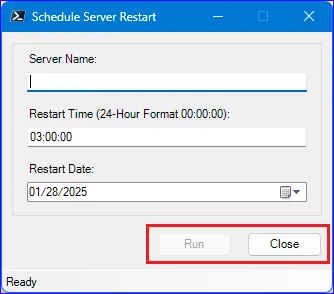
In a ScriptoForm PowerShell script file, a Button control should be instantiated in the Controls region and then defined within the Forms script block. By convention, a Button should be located directly on the Form and not within the
$GroupBoxMain GroupBox container, as it the case with other controls. An exception to this might be a Button that is directly associated with another control, such as a TextBox. In that case, the Button should be added to the GroupBox along with the other controls.The steps needed to implement a Button control with a ScriptoForm include:
- Instantiate a Button object in the Controls region.
Suggested name format: $ButtonName - Assign the required and any optional properties to the Button object in the Forms region.
- Assign an Event Handler to the Button object in the Forms region.
- Add the Button object to a Form object in the Forms region.
- Define the event handler with a script block in the Handlers region.
Examples
Section titled “Examples”- Instantiate a new
System.Windows.Forms.Buttonobject:Controls Region $ButtonRun = New-Object -TypeName System.Windows.Forms.Button - Assign properties and the event handler listener to the Button object and add it to the Form object:
Forms Region | $ShowMainForm $ButtonRun.Location = New-Object -TypeName System.Drawing.Point(($FormWidth - 175),($FormHeight - 60))$ButtonRun.Size = New-Object -TypeName System.Drawing.Size(75,25)$ButtonRun.TabIndex = 100$ButtonRun.Enabled = $false$ButtonRun.Text = "Run"$ButtonRun.Add_Click($ButtonRun_Click)$FormMain.Controls.Add($ButtonRun) - Create the event handler for the Button object:
Handlers Region $ButtonRun_Click ={$ToolStripStatusLabelMain.Text = "Working...please wait"$FormMain.Controls | Where-Object {$PSItem -isnot [System.Windows.Forms.StatusStrip]} | ForEach-Object {$PSItem.Enabled = $false}$FormMain.Cursor = [System.Windows.Forms.Cursors]::WaitCursor[System.Windows.Forms.Application]::DoEvents()try{<#Do work here...#>}catch{<#Add custom exception handling here...#>[void][System.Windows.Forms.MessageBox]::Show($PSItem.Exception.Message + "`n`nPlease contact $SUPPORT_CONTACT for technical support.","Exception",[System.Windows.Forms.MessageBoxButtons]::OK,[System.Windows.Forms.MessageBoxIcon]::Warning)}$FormMain.Controls | ForEach-Object {$PSItem.Enabled = $true}$FormMain.ResetCursor()<#Reset controls here...#>$ToolStripStatusLabelMain.Text = "Ready"$StatusStripMain.Update()}
Some buttons may tied to a specific key or key combination - the “ESC” key is connected to the “Close” button by default which will cause the Form to close and exit the script when the “ESC” key is typed. This behaviour can be disabled, if needed, by removing the DialogResult property on the “Close” button.
$ButtonClose.DialogResult = [System.Windows.Forms.DialogResult]::Cancel